Get started
Table of Contents
Open the dashboard
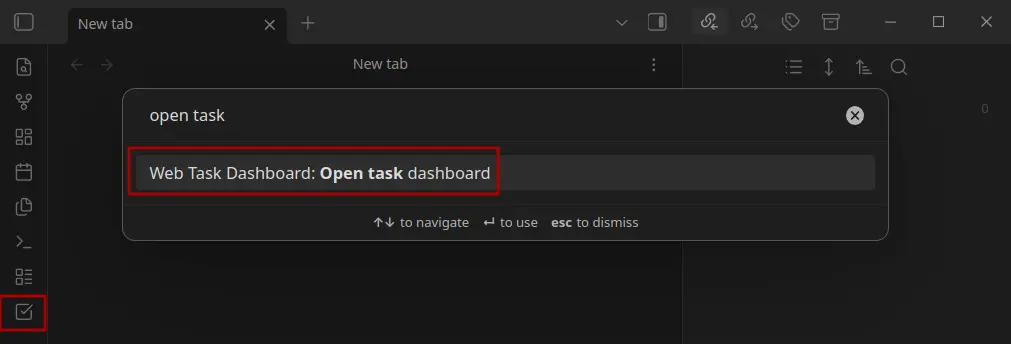
The dashboard can be opened in the following ways:
- Use the command palette to execute “Open Task Dashboard”.
- Click the “Open Task Dashboard” button located in the left sidebar.
Layout and features of the dashboard
The dashboard opens in a new tab and has it’s own view.
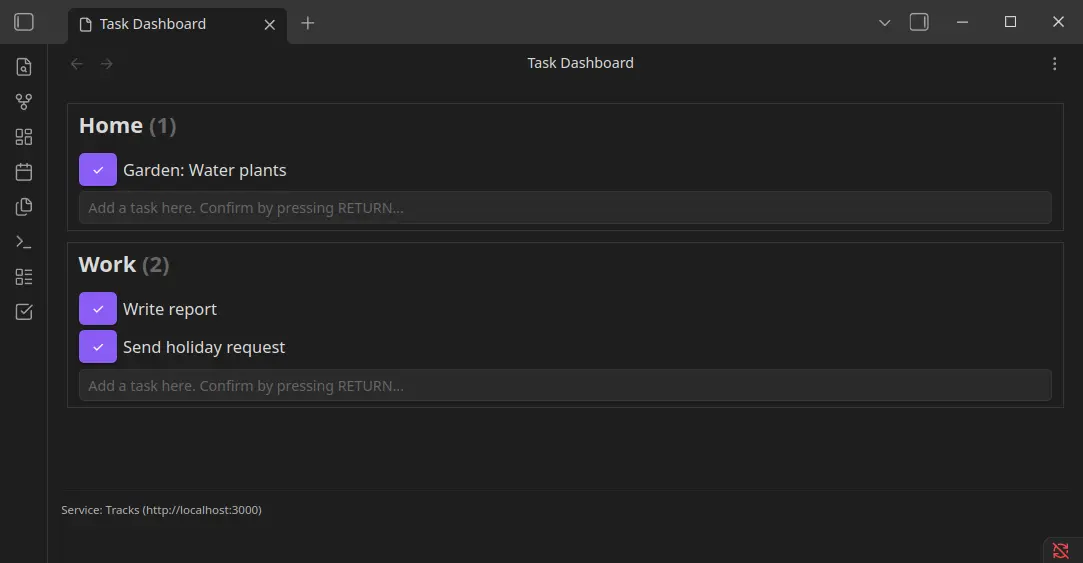
Tasks are grouped by a context. In this example we have the contexts Home and Work. The number behind the context name shows the number of open tasks.
Actions
Now you can do the following actions:
- Create task: To create a new task, position your cursor in the text box at the bottom of the context. Press Return to confirm. The task will be saved and added to the list of tasks.
- Delete task: To delete a task, hover your mouse over it. A “Delete” button will appear on the right side. Click this button to delete the task.
- Complete task: Tasks can be marked as complete by pressing the checkmark button. The button is located to the left of the task.
Information
At the bottom of the dashboard, you will find additional information about the task dashboard. For now (v1.0), it displays the backend being used along with the corresponding URL.